
Welcome Page
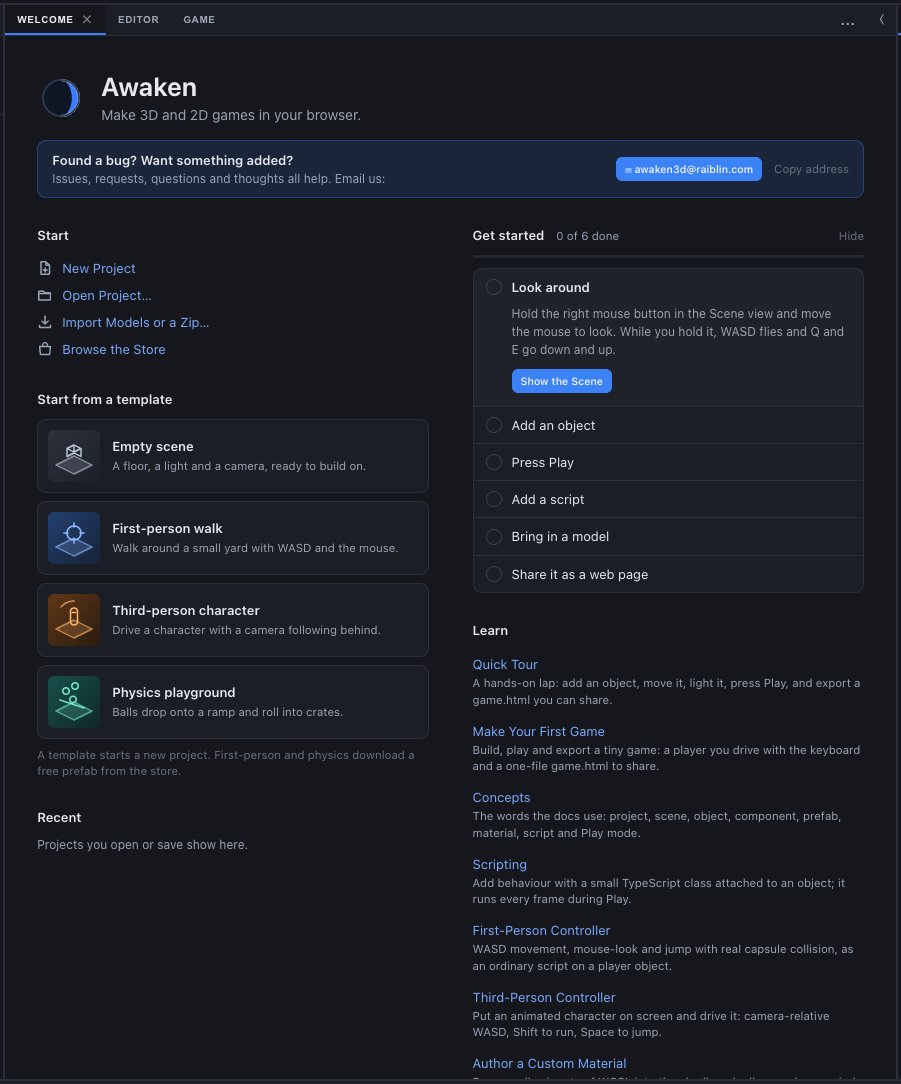
The Welcome page is the tab the editor opens on: it starts a new project from a template, reopens a recent one, walks a newcomer through six first steps that tick themselves, and links to the docs and the devlog.
It exists because a third of editor visits used to end inside 30 seconds without Play pressed, a project opened or anything imported: someone landing on a grey slab had no first move. The page gives them one, and gives a returning maker their last project in one click. Its logic lives in apps/editor/src/state/welcome.ts and templates.ts; the panel is apps/editor/src/panels/WelcomePanel.tsx.
When it opens
The page is a dock tab like any other panel. On startup it opens as the first tab of the main workspace group (the group that holds the Editor tab, the Scene view), so it reads at full width instead of as a side strip.
- Default on. The footer checkbox Show welcome page on startup turns it off for this browser. Only an explicit off is remembered (localStorage key
awaken.welcome.onStartup), so a fresh browser always sees it. - No Reopen question alongside it. While the page opens on startup, the editor does not ask "Reopen last project?": the Recent list already offers that project, marked Last opened. With the page switched off, the question comes back as before. See Launching the Editor.
- Not under automation. When
navigator.webdriveris set (scripted walks, screenshot tests), the editor boots with the Editor tab in front instead. - Get back to it from Help ▾ > Welcome or Windows ▾ > Welcome. Opening it again brings the tab forward wherever it last lived.
- Opening a project hides it. When a project opens while the Welcome tab is in front, the Editor tab comes forward so you see what you opened.
The toolbar keeps ▶ Play visible while the Welcome tab is in front, so where Play lives is the first thing a newcomer sees.
Layout
The page has a header (the Awaken mark and "Make 3D and 2D games in your browser."), two columns and a footer. The columns stack into one when the tab is narrow (a container query on the page, since a dock tab can be any width).
| Left column | Right column |
|---|---|
| Start | Get started (the checklist) |
| Recent, Start from a template, then New in the store (when you have recent projects) | Learn |
| Start from a template, New in the store, then Recent (when you have none) | From the devlog |
Straight under the header, a contact band reads Found a bug? Want something added? with the address awaken3d@raiblin.com, a button that opens an email to it, and Copy address.
If the browser cannot draw the 3D view, a notice sits above everything else. See The GPU notice. The notice ends "Think it should work here? Email us about it", and an error from a template that failed to build carries ✉ Email us this error; both write an email naming the browser and GPU (see Console).
Start
| Item | What it does |
|---|---|
| New Project | Replaces the open project with a new, untitled one holding the default scene (the Empty scene template). Asks "Discard unsaved changes and start a new project?" first when there are unsaved changes. |
| Open Project… | The same as File ▾ > Open Project…: the browser's open-file picker for a .awaken file, or a plain file input in browsers without the File System Access API. |
| Import Models or a Zip… | A file picker that accepts every importable type at once (models, .zip, .unitypackage, images, sounds, fonts, documents and Awaken asset files). After the import the Assets panel comes forward. See Importing Assets. |
| Browse the Store | Opens the Store tab. See Asset Store. |
Templates
Start from a template lists four tiles. Each one builds a small working scene you can press Play on within seconds, made of ordinary project content (objects in the Hierarchy, prefabs and scripts in the Assets panel) that you can take apart.
| Template | Tile text | What it builds |
|---|---|---|
| Empty scene | A floor, a light and a camera, ready to build on. | The default scene: Ground (a 12 x 0.5 x 12 m grey slab), Sun (a directional light, intensity 2.2) and Main Camera (60° field of view, at 0, 2.5, 8). |
| First-person walk | Walk around a small yard with WASD and the mouse. | A 24 m yard: a solid floor, 1 m walls round the edge, crates, a pillar, and a 5.8 m ramp rising 1.5 m (about 14.5°) onto a platform. Places the First Person Player prefab from the store's free First Person Player package. |
| Third-person character | Drive a character with a camera following behind. | The same yard, plus a Player capsule (capsule Collider, radius 0.35 m, height 1.8 m) with a Body and a Visor child so you can see which way it faces, driven by a short Third Person Walk script. Needs no download and no animated character. |
| Physics playground | Balls drop onto a ramp and roll into crates. | A 16 m floor with 0.8 m walls, a tilted plank, three dynamic crates and eight Ball prefabs from the store's free Physics Ball package, dropped from 6 to 16.5 m. The camera is moved so the whole run is in view. |
The note under the tiles says so too: first-person and physics download a free prefab from the store; the third-person template brings its own script, because the store's animated Third Person Player stands still without a rigged, animated character, which a template cannot supply. For that one, follow the Third-Person Controller tutorial.
What picking a template does
- It starts a new project, never edits the open one. The new project has no file, so the next Save Project asks where to save (Save As). One Cmd/Ctrl+S after trying a template can never overwrite the project you had open.
- The download comes first. A template that needs a store package downloads it before anything is replaced. If the download fails the page says why ("Couldn't download the First Person Player from the Awaken store (…). Check your connection and try again. Your open project hasn't changed.") and nothing changes.
- A clean start. The built scene has no undo history and no unsaved mark: nothing of yours is in it yet.
- What to do next. The Editor tab comes forward framing the floor, the Console logs "New project from the “First-person walk” template." (with that template's name) followed by how to play it, and ▶ Play pulses for 8 seconds with that same how-to beside it. For example, the first-person template says: "Press ▶ Play, click the game view, then walk with WASD and look with the mouse. Space jumps, Esc frees the mouse." Empty scene and New Project have nothing to play yet: they log "New project: an empty scene." and leave ▶ Play alone.
The scripts a template places are ordinary scripts. Open Third Person Walk in the Code panel to read it: its public fields (walkSpeed = 3, runSpeed = 6, turnRate, jumpHeight, cameraDistance, and so on) are Inspector controls you can tune while the game runs.
New in the store
New in the store shows up to 4 of the Asset Store's featured packages, each with its picture, name and one-line summary, the most recently released first. Clicking one opens its page in the Store panel, with its screenshots, what is inside it and Import. Browse the store opens the storefront. The section is not shown when the store cannot be reached (offline, or the store is down).
Recent
Recent lists up to 8 projects you opened or saved in this browser, newest first. The first is marked Last opened, and each shows when, in words ("5 minutes ago", "yesterday", "3 weeks ago"). Clicking one works like File ▾ > Open Recent: it refuses during Play, and asks before discarding unsaved changes.
The list needs the File System Access API (Chrome and Edge), which is what lets the editor reopen a file later. Elsewhere the section says "This browser can't reopen files later, so recent projects don't show here. Use Open Project… instead." See Saving & Opening Projects.
Get started
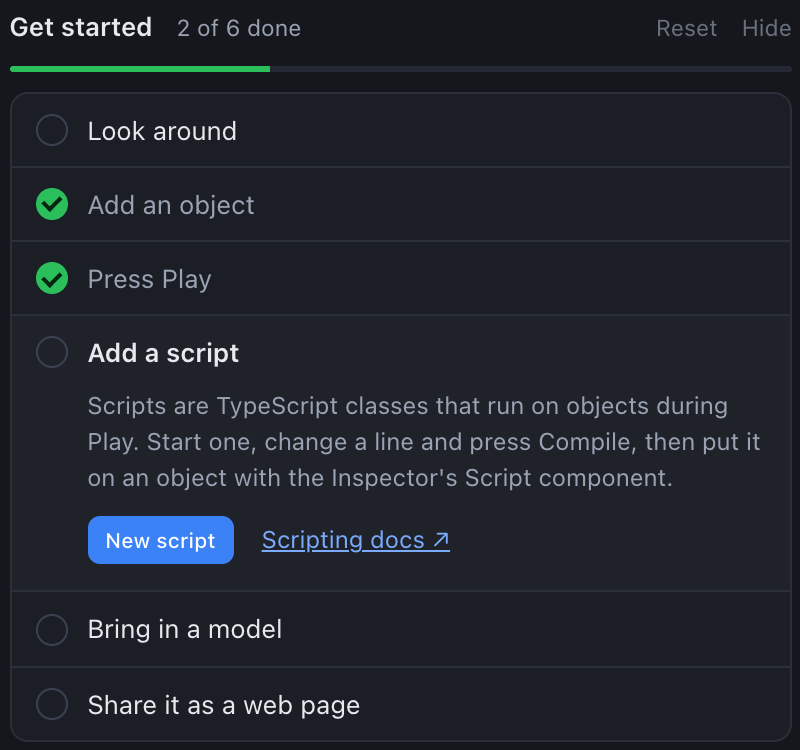
Get started is a six-step checklist covering the editor's loop, from looking around to sharing a link. The first step not yet done is open; click any step's title to open it instead. Each open step explains itself in one or two sentences and has a button that does it for you.
| Step | Button | Also ticks itself when you… |
|---|---|---|
| Look around | Show the Scene | Hold the right mouse button in the Scene view and move the mouse more than 4 px (the fly camera). |
| Add an object | Add a cube (places a cube where the Scene camera looks) | Add a primitive, light, camera, sprite or UI element from the Hierarchy's + > Create menu (or a row's Create Child). |
| Press Play | ▶ Play | Press ▶ Play anywhere. |
| Add a script | New script (creates a game script and opens it in the Code panel), plus a Scripting docs ↗ link | Change the text of a script in the Code panel. |
| Bring in a model | Import… | Finish any import that succeeds: dropped files, + Import in the Assets panel, or File ▾ > Import Model…. A failed import ticks nothing. |
| Share it as a web page | Export game.html…, plus Preview in a new tab and Put it online ↗ | Finish any export that succeeds: game.html, the hosting folder or the mobile project. A preview does not count. |
How the ticks behave:
- They tick from what you do, wherever you do it. The checklist listens to the same events the editor records for its usage stats (
play,script_edit,asset_import,export), and that listener runs for the whole session, so a step ticks even while the Welcome tab is closed. It does not depend on usage stats being switched on. - Only you can untick. Every checkbox can be ticked or unticked by hand; nothing else ever unticks a step.
- Reset unticks every step and shows the list. Hide folds the section to one line ("Get started, N of 6 done, Show").
- Per browser, not per project. Progress lives in localStorage (
awaken.welcome.steps,awaken.welcome.stepsHidden), like the dock layout. It is never saved into a project and never undoable.
Learn
Learn links only to finished docs pages, because a newcomer who clicks a "Coming soon" outline learns only that the help is not there yet. Each link opens in a new browser tab, never the editor's own (that would close the open project).
| Link | Opens |
|---|---|
| Quick Tour | /guide/quick-tour |
| Make Your First Game | /tutorials/first-game |
| Concepts | /guide/concepts |
| Scripting | /scripting |
| First-Person Controller | /tutorials/fps-controller |
| Third-Person Controller | /tutorials/third-person-controller |
| Author a Custom Material | /tutorials/custom-material |
| Importing | /import |
| Shipping | /shipping |
All the docs ↗ opens the docs home, https://docs.awaken3d.dev. The list is GUIDES in state/welcome.ts; a tutorial joins it when its page is finished.
From the devlog
The section shows the three newest posts from the devlog's JSON feed (https://awaken3d.dev/blog/feed.json), each with its title and a clamped summary, and an All posts ↗ link. The page waits at most 8 seconds for the feed. If it cannot be read, or a post is malformed or links off awaken3d.dev, that post (or the whole list) is left out without an error, and the section shows only a Read the devlog ↗ link.
The GPU notice
When this browser cannot draw the 3D view, the page leads with a notice before anything else, and the Scene view's overlay says the same thing in one paragraph (state/gpuAdvice.ts). The page asks for a GPU adapter once on load, without creating a device, and also hears the exact failure from any viewport that later fails to start.
| Failure | Notice title | What it suggests |
|---|---|---|
| No WebGPU at all | The 3D view can't draw in this browser | Advice for this browser and OS (for example "update Safari", or that Firefox has WebGPU on Windows only), and on a computer, download links for a browser that would work. |
| WebGPU, but no GPU offered | The 3D view can't draw: no GPU to use | Turn hardware acceleration on, update the graphics driver, or try another browser. |
| A GPU was offered but would not start | The 3D view could not start the GPU | Reload; if it keeps happening, update the graphics driver or try another browser. |
The first two also state where the editor runs: "Awaken runs in Chrome or Edge 113 or later on a computer, Safari 26 or later, and Firefox 141 or later on Windows." On iPhone and iPad the advice is to update to iOS 26, since every browser there uses Safari's engine. See Requirements & Browser Support.

Usage events
In a build that sends usage stats, each use of the page is recorded as one welcome event with two short strings, an action and an item (for example template / first-person, step / look, docs / guide/quick-tour, store_highlight / awaken.racing-kit). Nothing else from the page is sent. Switch usage stats off in File ▾ > Editor Settings…, which only appears in builds that send them.
See also
- Launching the Editor - what loads, and in what order
- Five-Minute Tour - the same loop as the checklist, step by step
- Toolbar & Menus - File, Windows and Help menus
- Asset Store - where the template packages come from
- Saving & Opening Projects - Save As, recent projects and the File System Access API