
Project & Editor Settings
Project Settings holds the values that belong to the whole project and ship with the game: the fixed clock, physics mode, quality levels and render layer names. Editor Settings holds the one setting that belongs to this browser instead.
The two dialogs are split on purpose. Project Settings is saved in the .awaken file and every edit in it is an undo step; Editor Settings lives in this machine's browser storage and never reaches the project.
Opening Project Settings
Open it from File ▸ Project Settings… in the Toolbar. Every render-layer mask popup (the Scene view's Layers menu, a Camera's cullingMask, a MeshRenderer's renderLayers) also ends in an Edit layer names… button that opens it.
The dialog is one scrolling page with four sections, in this order: Time, Physics, Quality, Render layers. Close it with Done, a click on the backdrop, or Esc (when the cursor is not in a text box). Nothing needs confirming: each change is applied and recorded as it is made, and ⌘Z undoes it like a scene edit (Edit Time settings, Edit Quality settings, or a layer rename).
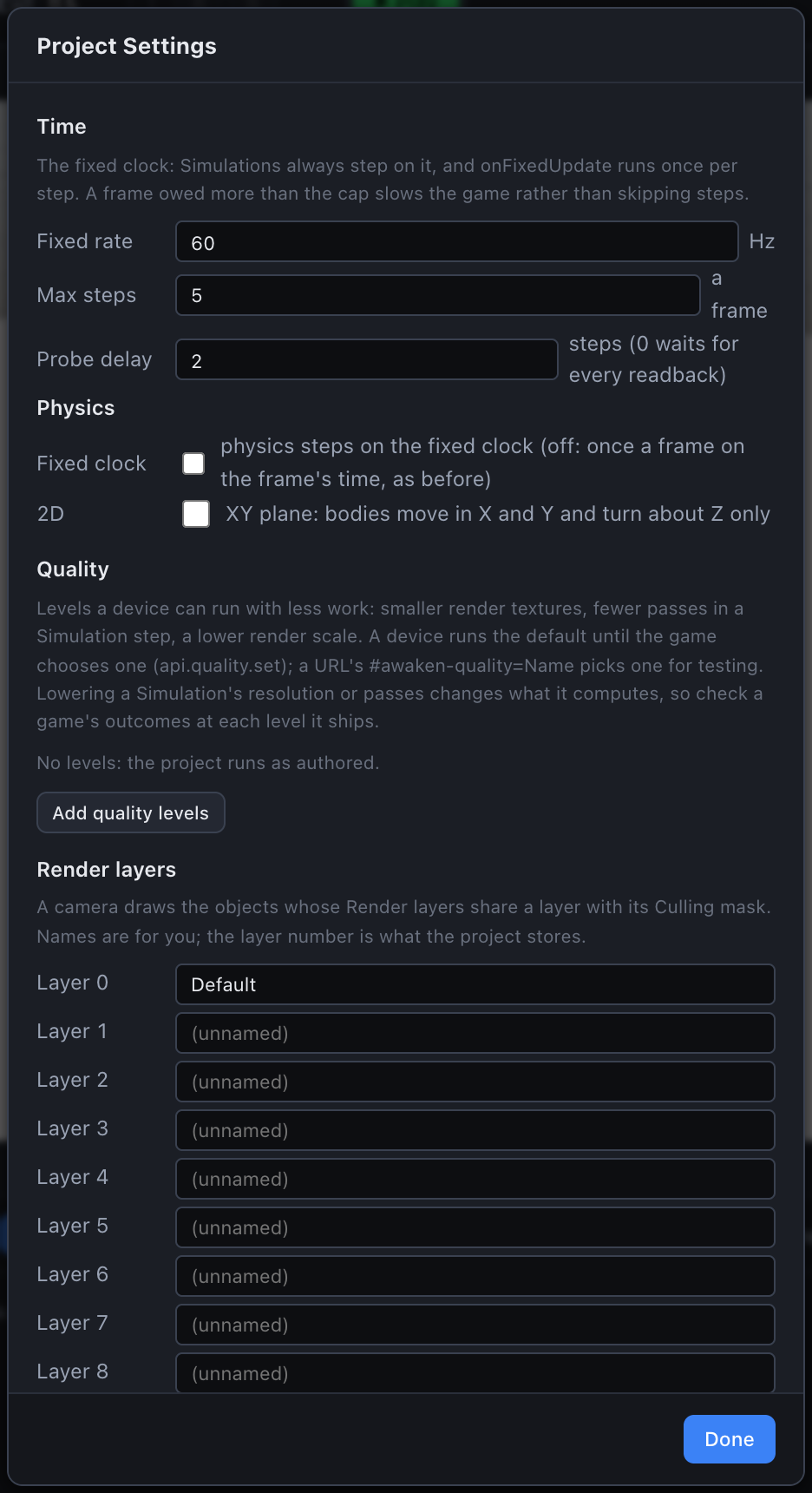
Time
The fixed clock that Simulations always step on and that onFixedUpdate(api, dt) runs on, once per step. A frame owes the steps its real time covers; past the per-frame cap the extra time is dropped from the clock rather than from the game, so a slow frame slows the game down instead of skipping steps. See Time & the fixed clock.
| Field | Default | Range | What it does |
|---|---|---|---|
| Fixed rate | 60 Hz | 1–240 | Fixed steps per second. A step's dt is always 1 / this. |
| Max steps | 5 a frame | 1–20 | The most fixed steps one frame runs. A frame owed more slows the game. |
| Probe delay | 2 steps | 0–16 | Fixed steps between a Texture Probe's copy and a script reading it with api.probe(entity). 0 waits for every step's readback, so the game runs at most one step a frame. |
Values are rounded to whole numbers and clamped to the range when you commit them (normalizeTimeSettings in packages/runtime/src/fixedClock.ts). A project whose Time settings are all at their defaults saves nothing for them.
Physics
Two switches, stored with the Time settings.
| Field | Default | What it does |
|---|---|---|
| Fixed clock | off | On: physics steps on the fixed clock (dt = 1 / Fixed rate), right after that step's onFixedUpdate. Off: physics steps once a frame on the frame's time, as every project made before the switch existed did. |
| 2D | off | Dynamic bodies move in X and Y only and turn about Z only. See 2D Games. |
Quality
Quality levels are named sets of cheaper settings a device can run, so a phone that cannot keep up runs the same project with less work. A level changes three things over the project's own values:
- Render scale - the canvas resolution, over Render Settings' own (0.25 to 1). Blank shows "(the project's)".
- Each render texture's size, as a fraction of its own width and height (0.05 to 1). The row shows the result, for example
of 512x512: 256x256. - Each Simulation update step's passes per fixed step (1 to 256), one row per update step of every Simulation asset.
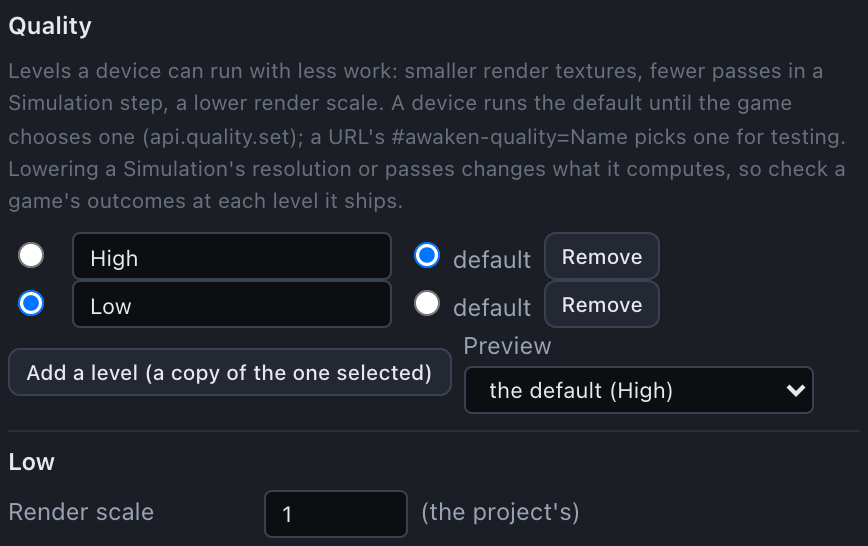
A project starts with no levels: the dialog says "No levels: the project runs as authored." Add quality levels creates two: High (the project as authored) and Low, a copy to make cheaper. After that the button reads Add a level (a copy of the one selected) and names the copy <name> copy.
Each level row has:
- a radio button on the left that picks which level the editing card below shows;
- the level's name, committed on blur or Enter and put back on Esc (a name another level already has is refused);
- a default radio: the level a device runs until the game chooses one;
- Remove.
Preview picks which level the editor's Scene and Game views run: "the default (High)" or any level by name. It is a session value and is never saved. Changing it resets every Simulation to step 0, and a script calling api.quality.set(name) in the editor changes it too.
A device runs, in order of precedence: the URL's #awaken-quality=<name> (for testing on a device), else the level the game chose with api.quality.set (saved), else the project's default. Lowering a Simulation's resolution or passes changes what it computes, not only how it looks, so check a game's outcomes at each level it ships.
Render layers
The 32 render layers a Camera's cullingMask and a MeshRenderer's renderLayers choose between. A camera draws the objects whose render layers share at least one layer with its culling mask; the Scene view's Layers menu does the same for the editor camera. See Render textures & layers.
- Layer 0 is always Default and cannot be renamed.
- Layers 1–31 start unnamed (shown as "(unnamed)"). Type a name and commit it on blur or Enter; Esc puts the old name back. Each rename is one undo step.
Names are labels for you. The project stores the layer number, so renaming a layer never changes what any camera draws. A mask popup lists every named layer, plus any unnamed layer whose bit is set (as Layer N), and summarises the mask on its button as Everything, Nothing, up to three names, or Mixed (N).
Editor Settings
File ▸ Editor Settings… opens this machine's settings. The menu item, and the dialog's only setting, exist only in an editor build that sends usage stats (built with VITE_USAGE_STATS_URL); in any other build the menu item is not there.
| Field | Default | What it does |
|---|---|---|
| Usage stats | on | Sends usage counts and error reports to Raiblin with a random install ID not linked to you: no projects, file names or personal details. Turning it off deletes the install ID and anything waiting to send. A Privacy link opens https://awaken3d.dev/privacy. |
The setting is stored in this browser, not in the project, so opening the same project on another machine does not carry it. Close the dialog with Done, the backdrop or Esc.
See also
- Toolbar & Menus - the File menu that opens both dialogs
- Time & the fixed clock -
onFixedUpdateand how the fixed clock runs - Simulations - what steps on the fixed clock, and what quality levels can cheapen
- Render textures & layers - culling masks and render layers in use
- App Settings - the shipped app's name, icon and launch screen