
Simulation Panel
The Simulation panel edits one Simulation asset's ordered GPU steps and camera slots, shows live thumbnails of the render textures it reads and writes, and resets, pauses or steps the objects in the open scene that run it.
Opening it
The panel's tab is titled Simulation (apps/editor/src/panels/SimulationPanel.tsx). It comes to the front when you:
- click a Simulation in the Asset Browser (its Simulations tab, or All);
- click + New Simulation there, which creates
Simulation Nwith no steps and opens it.
With no Simulation in the project, the panel says so and offers + New Simulation itself.
The header holds a select of every Simulation (shown only when there is more than one), the asset's name (Enter commits, Escape reverts) and a 🗑 that deletes the asset. Creating, renaming, deleting and every step edit is one undo step.
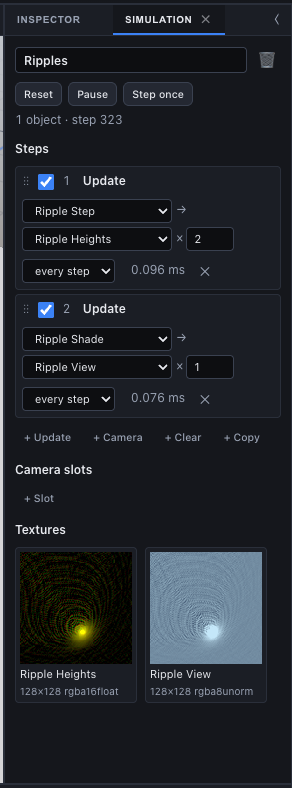
Run controls
The row under the header acts on every object in the open scene whose Simulation component names this asset. The buttons are disabled when there is none.
| Control | Does |
|---|---|
| Reset | Clears the textures the Simulation owns to their clear colours and sets each object's step count to 0, then runs its on Reset steps. A session action: not on the undo stack. |
| Pause / Resume | Holds or releases every object running it. The button reads Resume when all of them are paused. |
| Step once | Adds one fixed step to each object running it. Meant for a paused Simulation; a running one gets one extra step. It works while editing even with Simulate in Scene view off. |
The status beside them reads No object in this scene runs it: add a Simulation component, or <n> object(s) · step <s>, followed by · paused and, while editing, · Simulate in Scene view is off when none of those objects has it on (the Simulation then only moves when you press Step once). The step shown is the first object's. The status and the timings refresh four times a second.
Steps
Steps run top to bottom, every fixed step (or once on Reset). Each row has:
| Part | Does |
|---|---|
| ⋮⋮ grip | Drag the row onto another row to move it there. |
| Checkbox | Enable or disable the step; a disabled row is dimmed and skipped. |
| Number and kind | Its position, and Update, Camera, Clear or Copy (hover for what the kind does). |
| Kind fields | See below. |
| When | every step or on Reset. |
| GPU time | The step's last measured GPU time in ms, or -. |
| ✕ | Delete the step. |
The fields per kind:
- Update: an update-graph select (only update graphs are listed), →, a target render texture select whose empty choice is
(graph's target), and × Repeat (1–256 passes per step). - Camera: a camera-slot select from this Simulation's slots.
- Clear: the render texture to clear.
- Copy: the source render texture, →, the target. They must share a size and format, or the step is skipped with a console message.
A reference to an asset that no longer exists stays selected and shows as <id> (missing), so the select never rewrites it.
The buttons under the list add a step at the end: + Update (the project's first update graph, Repeat 1), + Camera (the first slot), + Clear and + Copy (the first render texture as the target). New steps run every step and start enabled.
GPU time per step
On a device with the timestamp-query feature, the Scene view's renderer measures update and clear steps (up to 32 a frame); a camera step or a copy always shows -. The figure is the step's last measured run on that renderer, so it updates while the Simulation is running and holds its last value when paused. Without timestamp-query every step shows -.
Camera slots
A camera slot is a name, such as Camera 1, that a Camera step draws through. The slot row lists them with a ✕ each; + Slot adds Camera N. The slot is bound to a real scene camera on each object's Simulation component (its Cameras field), so one asset can run with different cameras on different objects. A bound camera draws only when its Camera step runs, into its own Target texture, not in the ordinary frame.
Textures
The bottom section shows a live thumbnail for every render texture the Simulation reads or writes: those it owns, the sources of its Copy steps, and the rt: textures its update graphs read. Each thumbnail:
- is read back from the Scene view's renderer every 250 ms and shown as RGB over 0..1 (a single-channel
rformat as grey); - is labelled with the texture's name and
<w>×<h> <format>, ornot allocatedbefore anything has used it; - opens that texture in the Render Texture Inspector when clicked, where a channel select and Min/Max range show float data properly.
With no step writing a texture yet, the section says Steps that write render textures show them here.
Running it in the Scene view
The panel edits and drives the asset; objects run it. To see it move while you edit, either:
- tick Simulate in Scene view on an object's Simulation component; or
- press ▶ Simulate at the top of the Scene view (shown when the scene has any Simulation component), which turns it on for all of them and reads ■ Simulating while they all run.
Play always starts every Simulation from Reset, and Stop resets them again.
See also
- Simulations - steps, update graphs, the Simulation component and Texture Probes
- Render Textures - formats, double buffering and the Render Texture Inspector
- Shader Graph - building the update graphs the steps run
- Asset Browser - creating Simulations and render textures
- Viewport - the Scene view's Simulate button