
Time & the Fixed Clock
A frame lasts as long as the display gives it, but a fixed step always lasts 1 / Fixed rate seconds. Logic that runs on fixed steps gives the same result at 30, 60 or 120 fps.
Two clocks
| Frame clock | Fixed clock | |
|---|---|---|
| Hook | onUpdate(api, dt) | onFixedUpdate(api, dt) |
dt | The frame's real seconds, times api.timeScale | Always 1 / Fixed rate (1/60 s by default) |
| Runs | Once per frame | 0 to Max steps times per frame |
| Use for | Input reading, camera, UI, visuals | Movement, game rules, anything that must replay the same way |
Simulations always advance on the fixed clock. Physics advances on it only when the project's switch is on (see Physics).
How a frame runs
Each frame adds its real time (scaled by api.timeScale) to the clock, which answers how many whole fixed steps that time covers. Those steps run first, then the frame's own work (packages/runtime/src/playController.ts):
- A slow frame slows the game, it never skips steps. A frame owed more than Max steps runs that many and drops the rest of its time from the clock. The game runs slower than real time for that frame, and the outcome stays the same as on a fast device.
- No fixed step in the frame Play (or a new scene) starts. Scripts are created by that frame's update, after the fixed steps, so the first step every script sees is step 1 of the next frame. This keeps the number of steps independent of how long the first frame took.
- A script's first
onFixedUpdatecomes after itsonStart. A script whoseonStartisasyncgets neitheronUpdatenoronFixedUpdateuntil the promise resolves.
Settings
Project Settings → Time, and Physics for the last row (see Project & Editor Settings). Values outside the range are clamped.
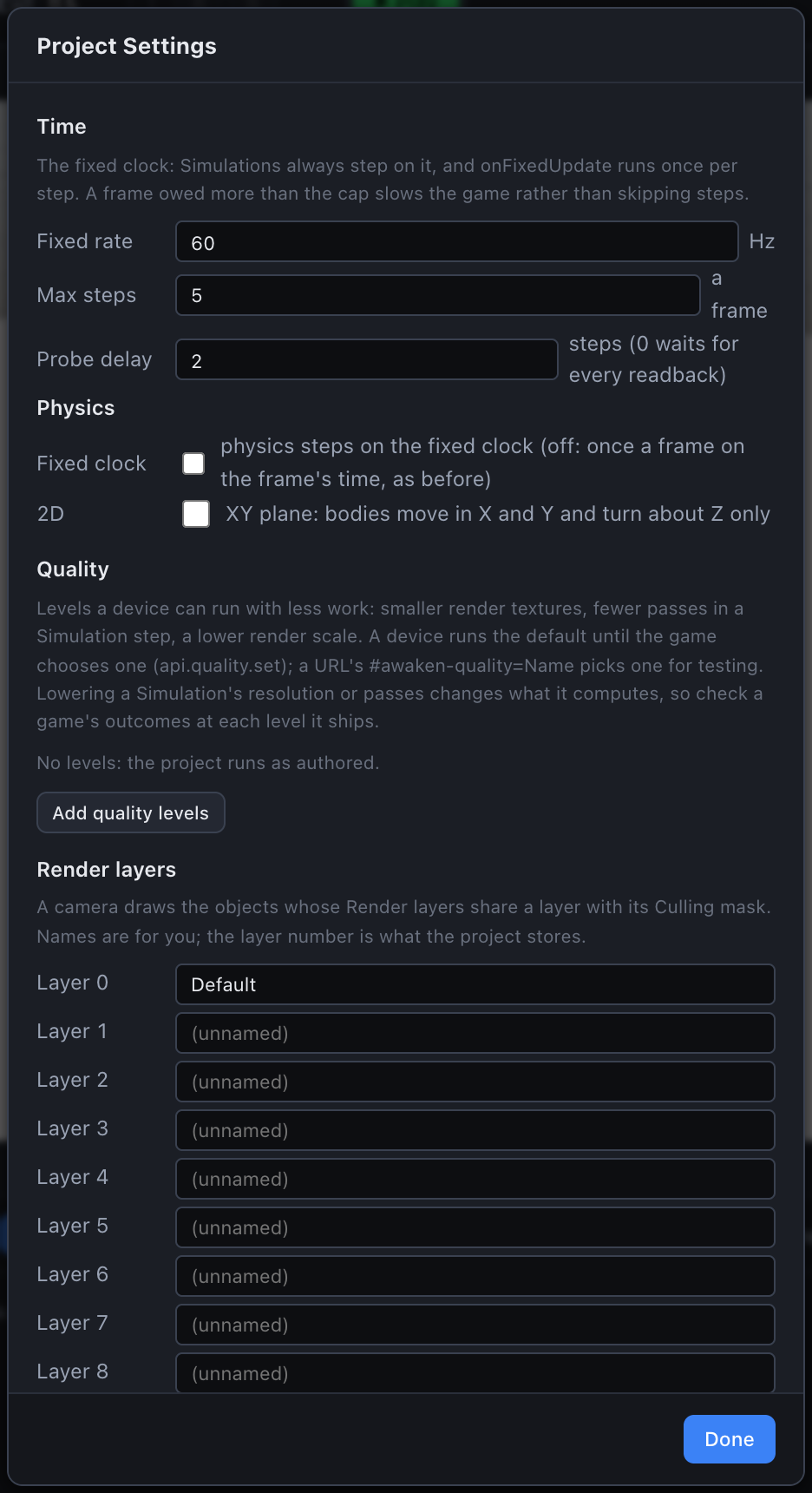
| Setting | Field | Default | Range | Meaning |
|---|---|---|---|---|
| Fixed rate | fixedHz | 60 | 1–240 | Fixed steps per second. |
| Max steps (a frame) | maxStepsPerFrame | 5 | 1–20 | The cap described above. At 60 Hz and a cap of 5, a frame longer than 83 ms slows the game. |
| Probe delay | probeDelay | 2 | 0–16 | Fixed steps between a Texture Probe's copy and a script reading it. |
| Physics → Fixed clock | physicsOnFixed | off | See below. |
A project that never changes these saves nothing for them.
Physics on the fixed clock
With the switch off, physics steps once per frame on the frame's dt, as every project did before the fixed clock existed. With it on, physics steps once after each onFixedUpdate with exactly 1 / Fixed rate seconds, so a character moved in onFixedUpdate and the bodies it pushes advance together. The switch is off for every project made before it existed. See Physics.
Texture probes wait rather than guess
A Texture Probe copies a window of a render texture back from the GPU after each fixed step, and a script reads it Probe delay steps later. If a step's copy has not arrived when its turn comes, the clock holds that step back and owes it again next frame (up to the per-frame cap). A slow readback slows a frame; it never changes a result. A delay of 0 waits for every step's readback, so the game runs at most one fixed step per frame: use it to check a result, not to ship.
Game time
api.timeScale sets how fast game time runs: 1 is normal, 0 stops, values between are slow motion, above 1 fast. It is clamped to 0–100.
It scales fixed steps (and the Simulations they advance), onUpdate's dt, api.time, timers, physics, animation, particles and the materials' clock. Input, UI clicks and UI animations ignore it, so a pause card still works at 0. With nothing else changing, a game at 0 draws no new frames, which saves a phone's battery while paused. It lasts across scene loads: set it back to 1 when the game resumes.
ts
export default class PauseCard {
  onStart(api) {
    api.on("pause", () => { api.timeScale = 0; });
    api.on("resume", () => { api.timeScale = 1; });
  }
}
api.time is the seconds since Play started, in game time. api.after(seconds, cb) and api.every(seconds, cb) schedule against that same clock (see Events & Timers).
Example: frame-rate-independent movement
ts
export default class Mover {
  speed = 4; // metres per second

  onFixedUpdate(api, dt) {
    const p = api.getPosition();
    const dir = (api.input.isDown("d") ? 1 : 0) - (api.input.isDown("a") ? 1 : 0);
    api.setPosition(p.x + dir * this.speed * dt, p.y, p.z);
  }
}
The object covers the same distance per second at any frame rate, and the same key presses always put it in the same place.
Seeing slowdown
The exported player's developer readout (turned on in App Settings, or with #perf in the URL) shows, once a second, the share of real time the per-frame cap dropped (12% slowed) and the fixed steps texture probes held back (3/s held).
See also
- Events & Timers -
api.after,api.everyand game events - Simulations - GPU steps that run on the fixed clock
- Physics - stepping physics on the fixed clock
- Character Controller - moving a character in
onFixedUpdate - Project & Editor Settings - where the Time settings live