
App Settings
App Settings holds what an installed app needs besides the game itself: its name, id, version, orientation, icon, launch screen and the products it sells, set once in the editor and written by every mobile and web export.
Open it from File ▸ App Settings…. The export dialogs also link to it when no icon is set ("Using the default icon. Set one in App Settings…"). The settings are saved in the .awaken project, along with the images you picked, so deleting a texture later does not change your icon.
A project whose App Settings have never been saved exports exactly as before: the name comes from the project file name, the id is com.awaken.<name>, the version is 1.0, the build number is 1 and the orientation is landscape (see Export for Mobile).
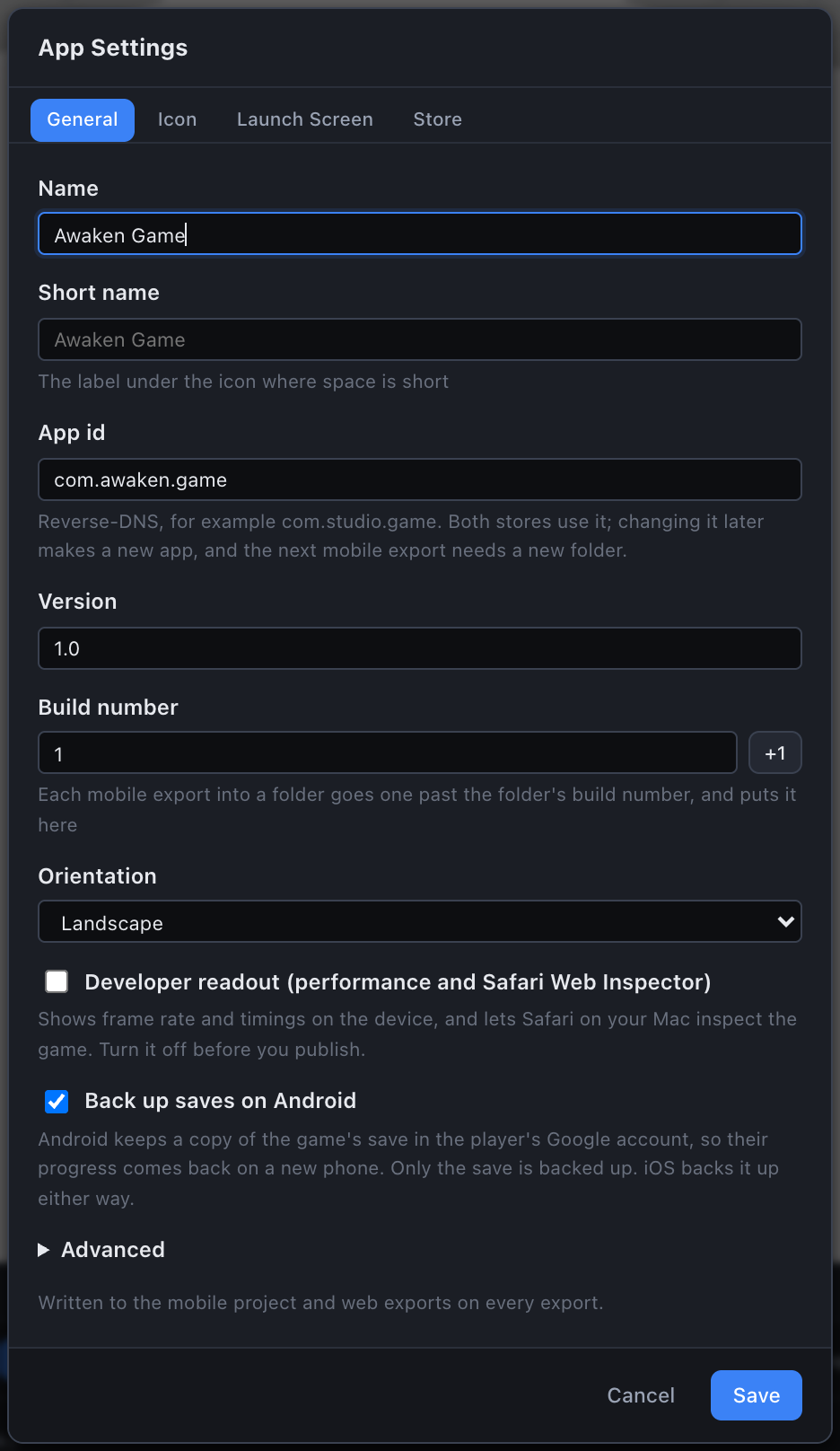
The tabs
General
| Field | What it is |
|---|---|
| Name | Shown under the icon on the phone, and used as the web page title. |
| Short name | The label where space is short. Used by the web manifest. Defaults to the name. |
| App id | Reverse-DNS, for example com.studio.game. It is both the iOS bundle id and the Android applicationId. |
| Version | What the stores show: one to three numbers separated by dots, such as 1.2.0. |
| Build number | A whole number from 1 to 2,100,000,000 that must rise with every store upload. The +1 button raises it by one. |
| Orientation | Portrait, Landscape or Any, for the iPhone, Android and the web manifest. The iPad always takes all four orientations: see iPad: every orientation. |
| Developer readout | Frame rate and timings over the game, and Safari's Web Inspector, in the mobile app. Off by default; the release check fails while it is on. |
| Back up saves on Android | On by default. Writes android:allowBackup, so the player's Google account backup keeps the game's save and their progress comes back on a new phone. Only the save files are ever backed up (res/xml/data_extraction_rules.xml). iOS backs the save up either way. Saved only when off, or when the project already had it. |
| Save key (under Advanced) | The key the mobile app signs its save file with, 64 hex characters. The first mobile export makes it. Generate key fills the field with a new random key, and asks first when a key is already set ("A new key makes every existing save file invalid. Players of a published game would lose their progress. Continue?"). Never change it once the app has shipped: see Signed saves. Left blank, the next mobile export takes the key of the folder it updates, or makes a new one. |
| Android release key (under Advanced) | The upload key Google Play knows the app by. Create key makes an RSA 2048 key and a self-signed certificate valid for 30 years, in a PKCS#12 keystore. Once made, the section shows its SHA-256 fingerprint and date, Download backup (a zip with the keystore and a README.txt holding its passwords) and Remove (asks first). The mobile export writes it into the project: see Android release key. The key is stored in the project file, so do not share the project publicly. |
Each field shows the value the exports use, set or not. Save writes a field only when you change it from that value, when the project already had it set, or (for the build number) when you press +1. A field you leave alone stays derived: rename the project file and an app whose name you never set is renamed with it.
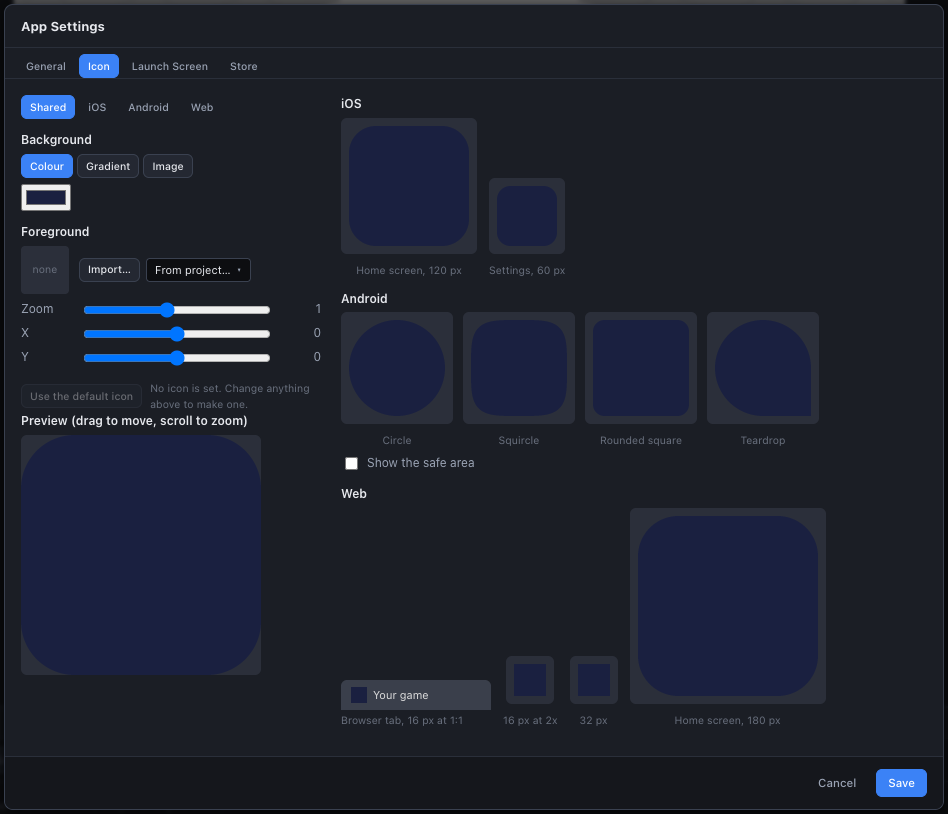
Icon
You design one icon and tweak it per platform.
- Background is a Colour, a Gradient (two colours and an Angle) or an Image.
- Foreground is an image you import from a file or pick from the images already in the project, with Zoom and X / Y offset sliders. Zoom 1 fits the image to the platform's usable area: 80% of the icon on iOS, 72 of 108 units on Android, 90% on web. SVG, JPEG and WebP files are converted to PNG on import.
- The strip Shared | iOS | Android | Web chooses what you are editing. On a platform tab, values you change apply to that platform only and the rest stay greyed at the shared design. Reset to shared clears that platform's overrides.
- Drag the large preview to move the foreground and scroll to zoom it. Both act only when the preview shows a foreground image; over an empty preview the wheel scrolls the tab.
- Use the default icon removes the app's icon when you save. The exports then write no icon files, and a mobile project keeps the icon it already has.
The previews are drawn by the same code that writes the export, so a preview's pixels are the exported file's pixels. The previews then add each platform's mask on top:
- iOS: the rounded square, at 120 px (home screen) and 60 px (settings).
- Android: circle, squircle, rounded square and teardrop, with Show the safe area to outline the part every launcher keeps visible.
- Web: the favicon at its true 16 px and at 2x, 32 px, and the 180 px home-screen icon.
The masks are for previewing only. Each export writes the full square and the phone or launcher applies its own mask.
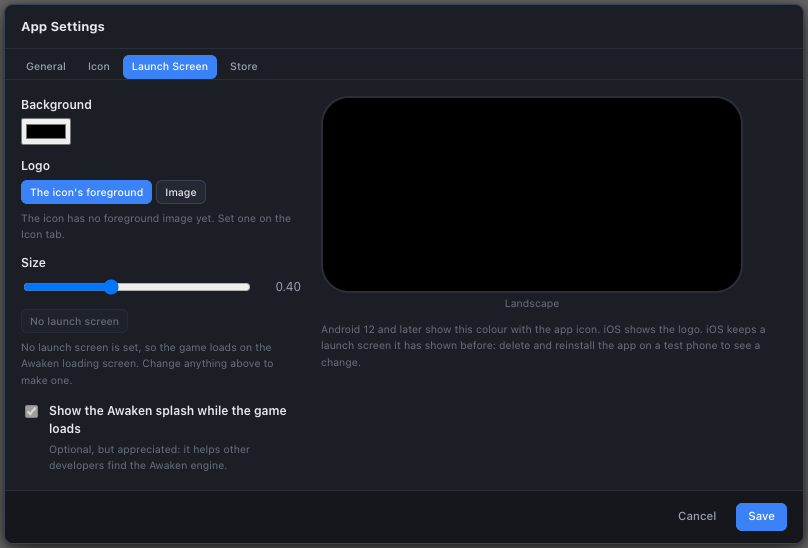
Launch Screen
- Background is one colour.
- Logo is either The icon's foreground or a separate Image.
- Size is the logo's width as a fraction of the screen's shorter side (default 0.40).
Previews show the phone held the ways the Orientation on the General tab allows: portrait, landscape or both. A caption under them says what the game shows while it loads: "Your splash, then the Awaken splash while the game loads." or "Your splash while the game loads."
No launch screen removes the app's launch screen when you save. The game then loads on the Awaken loading screen.
Show the Awaken splash while the game loads is on by default, and projects made before it have it on too. With it on, your launch screen shows first and then hands over to the Awaken splash while the game loads (see While the game loads). It is optional. Keeping it on helps other developers find the Awaken engine: the Awaken splash shows the engine's address, awaken3d.dev. Without a launch screen the game always loads on the Awaken splash, so the checkbox shows on and cannot be changed.
The reasons the dialog cannot save are listed above Save, whichever tab is open.
Store
The products the game sells through api.store (key, type, App Store id, Google Play id and a fallback title), what a purchase does in Play, Preview and web exports (Test mode), and Clear test purchases. Prices are never set here: they come from the stores. See In-app purchases.
What each export writes
Each export draws its images from your settings and writes them whole. Nothing is resized from a smaller file.
| Export | Icon | Launch screen | Other |
|---|---|---|---|
| iOS (mobile project) | One opaque 1024 px PNG in AppIcon.appiconset, plus its Contents.json. Xcode 14 and later makes the other sizes. iOS rejects icons with transparency, so the icon is flattened onto its background. | LaunchBackground.colorset and LaunchLogo.imageset (one 1024 px image). LAUNCH_BACKGROUND in App.tsx, shared with Android. game/launch-logo.png, shared with Android. The game's loading screen, as in game.html. | CFBundleDisplayName and the iPhone's orientations in Info.plist, and all four orientations for the iPad. Id, version and build number in project.pbxproj as PRODUCT_BUNDLE_IDENTIFIER (the app target only), MARKETING_VERSION and CURRENT_PROJECT_VERSION (every target). |
| Android (mobile project) | In mipmap-mdpi to mipmap-xxxhdpi: ic_launcher.png and ic_launcher_round.png at 48 dp, and the adaptive layers ic_launcher_foreground.png and ic_launcher_background.png at 108 dp. Densities are 1, 1.5, 2, 3 and 4x, so 48 to 192 px and 108 to 432 px. Two mipmap-anydpi-v26 XML files join the layers. | launch_background colour in res/values/colors.xml. LAUNCH_BACKGROUND in App.tsx, shared with iOS. game/launch-logo.png, shared with iOS. The game's loading screen, as in game.html. | app_name in strings.xml and app.json. applicationId, versionName and versionCode in app/build.gradle. android:screenOrientation and android:allowBackup (with android:dataExtractionRules) in AndroidManifest.xml, and res/xml/data_extraction_rules.xml. |
| game.html | A 32 px and a 16 px favicon and the 180 px apple-touch-icon, embedded as data so a double-clicked file shows them. | The loading screen in the launch colour and logo, then the Awaken splash when it is on (see While the game loads). | The name as the page title. |
| Folder | favicon.ico (16, 32 and 48 px), apple-touch-icon.png (180 px), icon-192.png and icon-512.png. | The loading screen, as in game.html. The launch background is also the manifest's background_color and theme_color. | manifest.webmanifest (name, short name, icons, display: standalone, orientation) linked from the page, so a hosted game can be installed from a browser. |
Every mobile export also writes saveKey.ts, with or without App Settings: the save key above, or a new one on the first export (see Signed saves). With an Android release key, every mobile export writes android/app/upload.p12 and android/keystore.properties too (see Android release key). Neither key on its own makes an export rewrite the name, id or version: a project whose App Settings hold only keys exports as one without App Settings. Icon files are written only when an icon is set. The launch colour in colors.xml and App.tsx, and the loading screen's look, are written only when a launch screen is set. game/launch-logo.png is written on every mobile export: the launch logo's 1024 px square, or one transparent pixel without a launch screen. Removing the icon or the launch screen therefore leaves the last ones written in an existing mobile folder's native files, until you export to a new folder.
The editor owns these fields
For a project that has App Settings, every mobile export rewrites the fields above, both on the first write and on updates into an existing mobile folder. Change the version in App Settings, export again, and project.pbxproj and build.gradle change with it. The dialog says so: "Written to the mobile project and web exports on every export."
Each value replaces one setting in place, and the export's log lists every value an update changed, one line per field:
text
Bundle id: com.studio.game → com.awaken.game
Build number: 41 → 42
The rest of those files is left as you have it. The bundle id is written to the app target alone, so an extension target such as a widget keeps its own id; the version and build number are written to every target, as Apple requires an extension's to match the app's. Still yours, and never touched:
- Signing:
DEVELOPMENT_TEAM, provisioning profiles and keystores, apart from the Android release key when App Settings has one.build.gradle's signing block is yours too: the export never adds or changes it. - Dependencies, and your own native code.
If you edit one of the fields App Settings writes directly in Xcode or Android Studio, the next export overwrites it. Make that change in App Settings instead.
An update refuses a build number lower than the one already in the folder (versionCode or CURRENT_PROJECT_VERSION), because the stores reject a lower build: "The build number would go down from 42 to 1, and the stores reject a lower build. Raise the build number in App Settings."
An export never skips a field without saying so. When a file is not in the folder, or no longer holds a field where the template put it, the log names the field and the file.
Mobile folders made before App Settings
A mobile folder exported before App Settings holds the template's placeholder id, version and build, or the ones you set since in Xcode and Android Studio. The first update with App Settings rewrites them, so before it:
- Copy your id, version and build number into App Settings.
- If your id differs from the
bundleIdin the folder'sawaken.config.json(it does if you changed the id in Xcode or Android Studio), setbundleIdandpackageNamethere to your id. The export matches a folder to its game by that file.
Mobile folders made by an older editor
An update writes the game, and with App Settings the values they own, so it never adds native code that a newer mobile template has. Every update reads the folder's ios/AwakenGame/Info.plist, and writes it only with App Settings. The log has one line when the folder predates something the app needs:
- When its
Info.plisthas noUIApplicationSceneManifest, with or without App Settings: "Apps built with Xcode 27 (the iOS 27 SDK) quit at launch on iOS 27 without the scene lifecycle, which this mobile folder predates: export to a new folder, or make all the changes listed under "Folders made by an older editor" in its README.md." The update never adds the manifest, which needsSceneDelegate.swiftin the Xcode project too. - When a launch screen is set and the folder's
LaunchScreen.storyboard,AppDelegate.swiftorvalues/styles.xmllacks its wiring: "This mobile folder was made before launch screens, so the launch screen will not show: export to a new folder, or make all the changes listed under "Folders made by an older editor" in its README.md." - When the folder's
App.tsxdoes not use the save key, with or without App Settings: "This mobile folder was made before signed saves, so the app keeps its save file unsigned: export to a new folder, or make all the changes listed under "Folders made by an older editor" in its README.md." The update still writessaveKey.ts, which the oldApp.tsxdoes not read. - When the folder's
App.tsxhands the page no release channel, with or without App Settings: "This mobile folder was made before release channels, so the game reads api.app.channel as "release" in every build, TestFlight and runs from Xcode or Android Studio too: export to a new folder, or make all the changes listed under "Folders made by an older editor" in its README.md." To keep the folder, copyApp.tsx,appChannel.ts,AppDelegate.swift,MainApplication.ktandAppChannelModule.ktfrom a new export (the README's Release channels). - When the project has an Android release key and the folder's
android/app/build.gradledoes not readkeystore.properties: "This mobile folder's android/app/build.gradle was made before Android release keys, so a release build is still signed with the debug key: export to a new folder, or copy the release signing block shown under "Android release key" in a new folder's README.md into it." This change stands alone; the export adds the two.gitignorelines itself. - When the project has an Android release key and the folder's
android/app/build.gradlestill signs a release build with the debug key when the key is missing: "This mobile folder's android/app/build.gradle signs a release build with the debug key when keystore.properties is missing, which Google Play rejects: copy the release signing blocks shown under "Android release key" in a new folder's README.md into it, so a release build without the key stops instead."
The mobile project's README.md has that one list, under Folders made by an older editor: SceneDelegate.swift added to the AwakenGame target, AppDelegate.swift, three Info.plist entries (the scene manifest, UIViewControllerBasedStatusBarAppearance and UIStatusBarHidden), the launch screen files, App.tsx, launchLogo.ts, nativeSave.ts, pageWatch.ts, shellBridge.ts, saveSign.ts, scripts/release-check.mjs (with its line in package.json), MainActivity.kt, react-native-safe-area-context and @noble/hashes in package.json and a .gitignore line, then npm install and pod install. These go together: copying some of the files and not the others breaks the app. The simplest fix is to export once to a new, empty folder and use that one.
Changing the id makes a new app
The stores treat a different id as a different app, and iOS signing needs a profile that matches the id. An existing mobile folder is matched to its game by id, so the export refuses to update a folder that was made for another id. Export to a new, empty folder after you change it.
Launch screen behaviour
- iOS caches launch screens. A phone that has shown a launch screen before can keep showing it. To see a change, delete the app from the test device and install it again.
- Android 12 and later draw their own launch screen: the launch colour with the app icon. The mobile template targets Android 12 and later (
minSdkVersion 31), so on Android the launch logo first appears in the app's first frame, after the icon.
While the game loads
With a launch screen set, the game's loading screen starts with your splash, in the launch screen's look:
- the launch colour, flat, over the whole screen;
- the launch logo, at the size and in the place the iOS launch screen draws it;
- a loading bar under the logo, which fills as the game loads.
The bar is white on a dark launch colour and black on a light one. The text label under the Awaken loading screen's bar ("Loading meshes… 340/512") is not shown on your splash.
What follows depends on Show the Awaken splash while the game loads:
- On (the default). 600 ms after your splash is first drawn, it cross-fades over 400 ms to the Awaken splash (see The Awaken splash). The Awaken splash stays until the game's first frame is ready and at least 3 seconds have passed since it was fully shown, then fades out over the game. Both bars follow the game's load progress, so the cross-fade shows the same fill on each. Your splash has no "Made with Awaken" line in this mode.
- Off. Your splash is the whole loading screen, with a small "Made with Awaken · awaken3d.dev" link at the bottom, and fades out over the game's first frame as soon as it is ready.
Either way, the game's time starts when the splash starts fading. The game makes its first frame under the splash (its scripts' onStart runs, so what they load loads while the splash covers it), then its clock and its sound wait until the fade begins: onUpdate gets a dt of 0, and no physics step, fixed update or timer runs. A race's countdown, a level timer or a falling object starts when the player can see it, not 3 seconds earlier behind the splash.
Without a launch screen the game loads on the Awaken splash alone, from the page's first paint. It stays at least 3 seconds from the page's start, so a game whose first frame is ready in 1 second still shows it for 3 seconds, and a game that takes longer than 3 seconds to load fades into the game as soon as its first frame is ready.
Preview Game shows the same sequence without the 3 second minimum, with or without a launch screen, so trying a change is not slowed down: the splash fades as soon as the first frame is ready. game.html, the folder export and the mobile export keep the minimum.
The Awaken splash
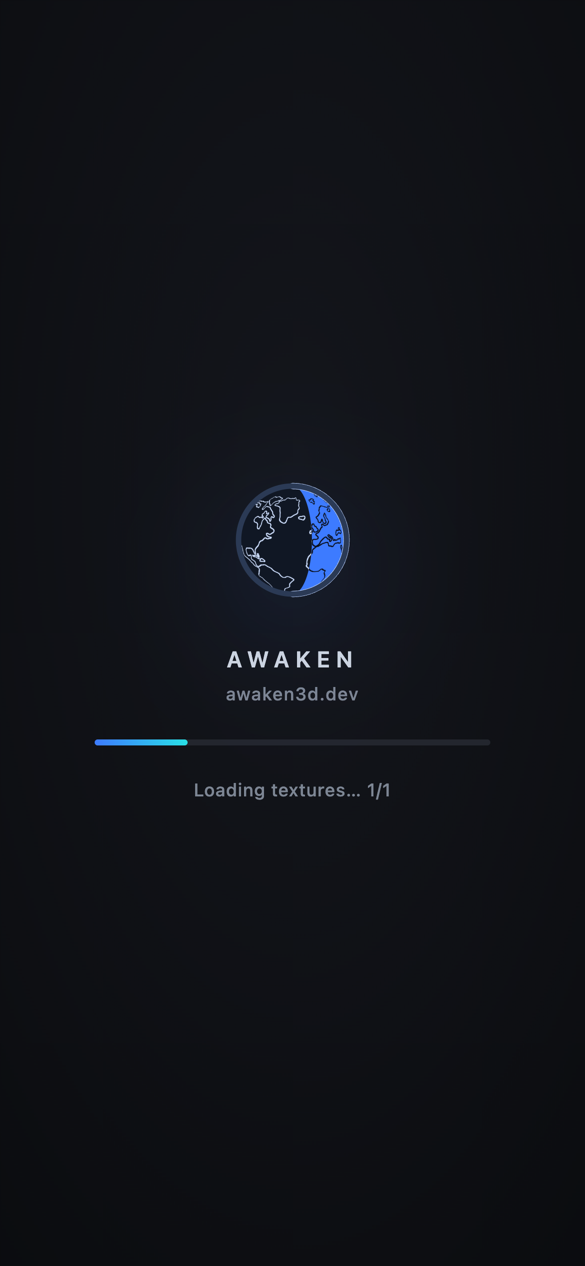
On the Awaken loading screen's near-black background: the Awaken globe, "AWAKEN" with the engine's address, awaken3d.dev, under it, then the loading bar and its label ("Loading meshes… 340/512"). The address is a link: it opens https://awaken3d.dev/ in a new tab in a browser, and in the phone's browser in the mobile app. The splash is the player template's #splash (apps/player/index.html).
How the timing works
The cross-fade is a CSS animation, so it does not wait for the player's code; while the player decodes the scene, a browser can still drop some of its frames. The 600 ms, 400 ms and 3000 ms are AWAKEN_SPLASH_TIMING in packages/runtime/src/bootSplash.ts. The export writes the minimum into the page as data-awaken-min on #splash (0 for Preview Game), and the player reads it back there, together with the cross-fade's own timing, before it fades the splash into the game. A page whose minimum is not a positive number fades at the first frame. A page with no minimum written and no app's splash (the template's own splash) keeps 3 seconds from the page's start; Preview Game writes data-awaken-min="0" on it. A page whose app turned the Awaken splash off fades at the first frame, and whatever a page says, the splash goes at most 10 seconds after the first frame is ready (SPLASH_HOLD_LIMIT_MS). If the game fails to start, the error replaces the splash at once, as before.
Measured in headless Chrome at 393 by 852 with Crownquest's game.html, which takes about 1.5 seconds to its first frame there:
| Setting | Your splash drawn | Awaken splash fully shown | First frame ready | Fade into the game |
|---|---|---|---|---|
| On | 97 ms | 1097 ms | 1477 ms | 4100 ms (3003 ms after the Awaken splash was fully shown) |
| Off | 1483 ms | 1483 ms | ||
| No launch screen | 1511 ms | 1511 ms |
A game that is ready in under a second still shows the Awaken splash for 3 seconds. One that is ready more than 4 seconds after your splash is first drawn (600 + 400 + 3000 ms) fades into the game at its first frame, with no extra wait.
Without a launch screen, the loading screen is the Awaken one alone: the Awaken globe, a loading bar and the label on a near-black background, gone as soon as the first frame is ready. It has no minimum.
On a phone with a launch screen set, the launch logo stays on screen in one place from the phone's launch screen to the game's loading screen, and no frame shows the launch colour alone:
- iOS.
AppDelegate.swiftshows the launch storyboard's own view as React Native's loading view, so it is the same picture as the launch screen, and keeps it up untilApp.tsxshows the logo itself. The launch screen has no status bar (UIStatusBarHiddeninInfo.plist), as the game has none, so the safe area the logo is centred in is the same before and after. With a status bar, an iPhone without a notch or an iPad drew the logo 10 pt lower on the launch screen and moved it up at the hand-over. - Android.
MainActivity.ktholds back the app's first frame untilApp.tsxshows the logo, so the system launch screen stays up until then, and removes it without the system's fade. The change from the app icon to the logo is the one change on screen. - App.tsx covers the WebView with the launch colour and
game/launch-logo.pnguntil the game's loading screen has painted with its logo. The page then postsawaken:splash, and the cover goes with no fade. A page that never posts it is uncovered 4 seconds after it loads, one that fails to load or whose process dies at once, and any page 15 seconds afterApp.tsxfirst renders. The native side waits for the cover for 10 seconds at most.
The cover and the loading screen place the logo by the iOS launch screen's rule: the logo's 1024 px square fitted into the safe area, centred in it. Both use the same safe area, the one App.tsx reads from react-native-safe-area-context as the app starts, which it passes to the page in its URL (#awaken-safe-area=top,right,bottom,left). The page does not use its own: on a first launch WKWebView reported every inset as 0 at its first paint, and the Android System WebView tested (124) always did. On Android the status bar is hidden before React Native starts, so that safe area is the one the game keeps. With the orientation set to any, turning the device during launch can move the logo once at the hand-over, because the cover and the loading screen keep the safe area the app started with.
Without a launch screen, game/launch-logo.png is a transparent pixel and there is no cover, so the native launch screen goes at React Native's first render: Android holds the system launch screen until then and removes it without the system's fade, and iOS holds the launch storyboard's view until then. The app then shows the launch colour, black by default, until the Awaken loading screen paints.
The hand-over has been checked with screen recordings of cold launches (a fresh install), frame by frame, from the launch screen to the game's loading screen, with the app built against the iOS 27 SDK and iOS 26.0 as its minimum. From the first frame with the logo in place, its centre stayed within 2 px of the loading screen's and its width within 2%, and no frame showed the launch colour alone:
| Device | Frames checked | Worst centre offset | Worst width change |
|---|---|---|---|
| iPhone 16, iOS 27.0 simulator | 53 | 2.0 px | 0.18% |
| iPhone SE (3rd generation), iOS 27.0 simulator, 2 runs | 51 and 28 | 2.0 px | 1.1% |
| iPad (A16), iOS 27.0 simulator, 2 runs | 51 and 48 | 2.0 px | 1.77% |
| Pixel 6, Android 15 emulator | 4 | 0.5 px | 0.21% |
The worst iPhone SE and iPad frames are the last of iOS's own zoom-in from the app icon. A recording keeps only the frames that change, so a hand-over that changes nothing adds none. The iOS 27.0 simulator has no WebGPU adapter, so for these runs the page's engine scripts were removed to keep its loading screen up. The same app without UIStatusBarHidden drew the logo 20 to 21 px lower on the launch screen of the iPhone SE (20 to 22 px on the iPad) and moved it up at the hand-over. Android 12 to 14 and physical devices have not been checked.
Invalid values
The dialog checks each field and every export checks again: game.html, Preview Game, the folder export and the mobile export. An invalid value refuses the export, before it asks where to save, and states the reason:
- App id: two or more parts separated by dots, each starting with a letter and holding only letters and digits, none a Java or Kotlin keyword, 155 characters at most.
- Version: one to three whole numbers separated by dots.
- Build number: a whole number from 1 to 2,100,000,000, Android's
versionCodelimit. - Name: not empty.
- Orientation: portrait, landscape or any.
- Colours (icon backgrounds, gradients, the launch colour): written as
#rrggbb. - Icon placement: zoom from 0.2 to 2, X and Y offsets from -0.5 to 0.5; a gradient angle that is a number.
- Launch logo size: from 0.1 to 0.9.
- Awaken splash: true or false, when the project has it.
- Save key: 64 hex characters, when the project has one.
- Android release key, when the project has one: the keystore as base64 text, an alias of 1 to 64 letters, digits, dashes or underscores, passwords of 6 to 128 printable characters without spaces or backslashes, a fingerprint of 64 lowercase hex characters and a creation date. The editor does not open the project's keystore to check it; Gradle reports one that does not open when it builds.
The dialog only ever writes values inside these ranges; the export's check catches a project edited by hand or written by another tool.
An image the export cannot read is named in its log, with the reason, and the icon or logo is drawn without it. The engine reads 8-bit RGB and RGBA PNGs that are not interlaced; the dialog converts everything it imports to that.
See also
- Export for Mobile - the React Native project these settings are written into
- Export game.html - the single-file export and its favicon
- Export Folder (for hosting) - the folder export and its manifest
- Saving & Opening Projects - where App Settings are stored